 Punch
PunchShift approvals
Approve every shift before it pays out.
Review the punch times, lunch, and payout. Approve in one tap. Reject with a reason that lands in their inbox.
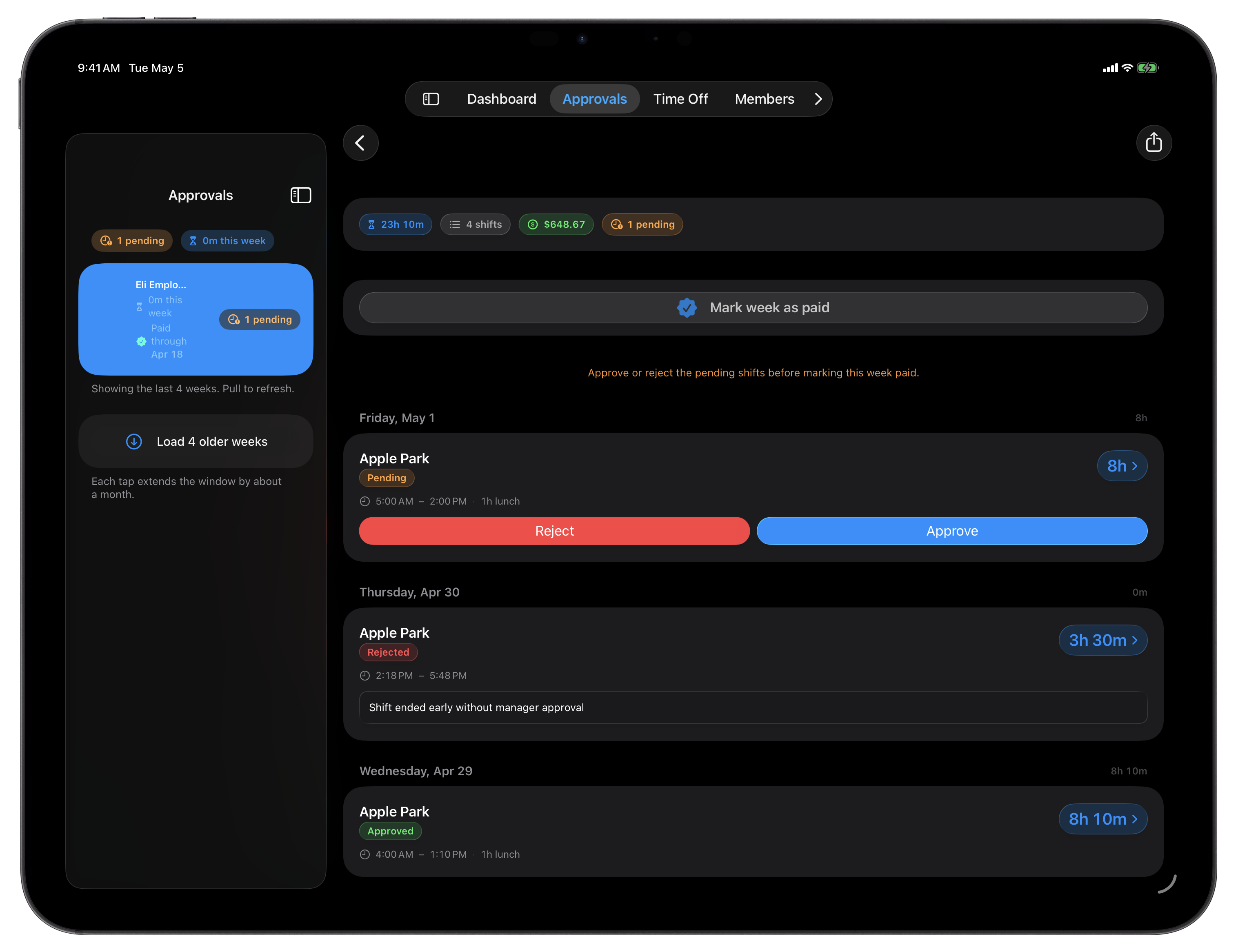
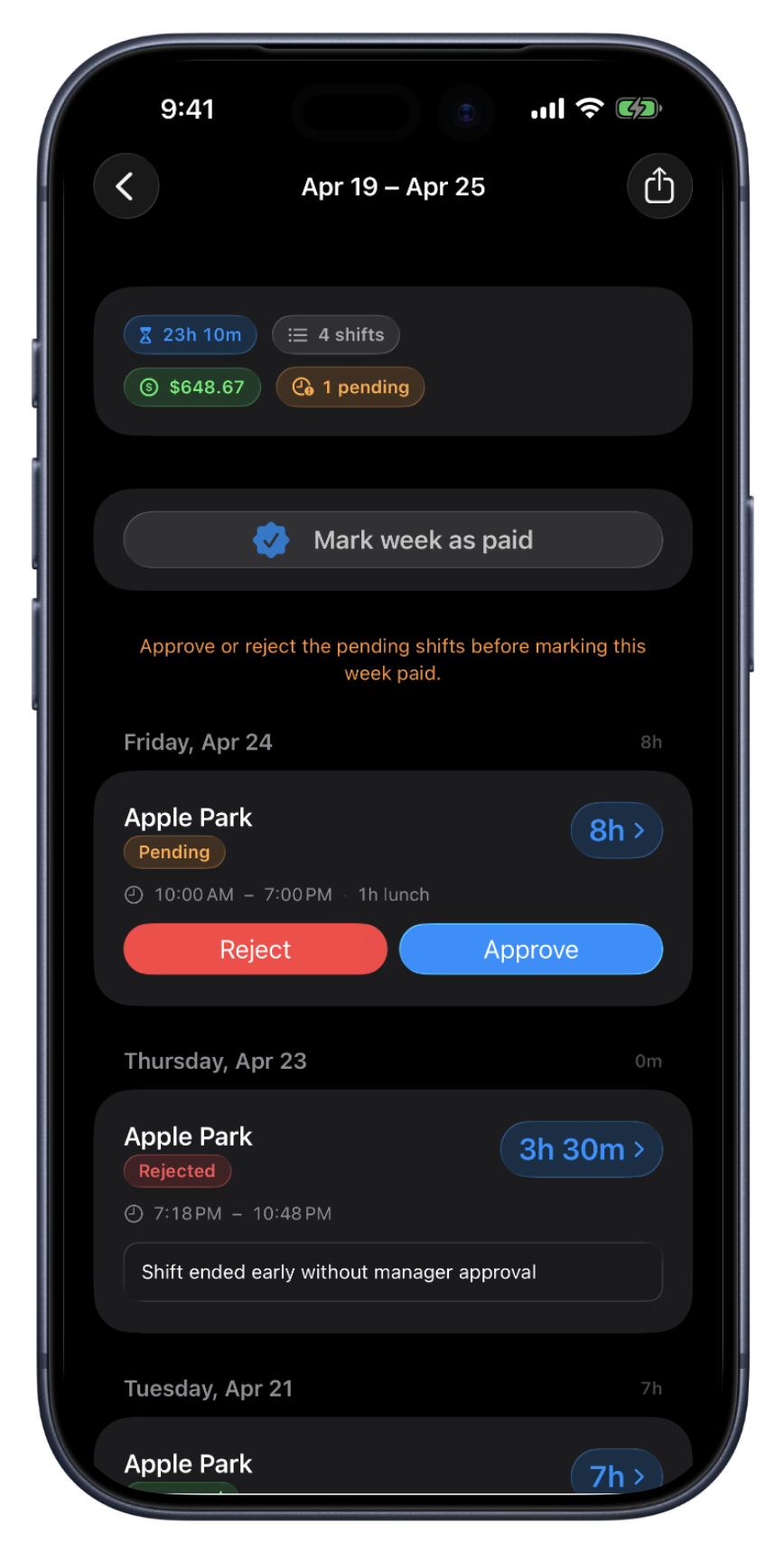
One queue. One decision.
Every completed shift lands in the Approvals queue with the numbers you need to decide: punch-in and punch-out times, lunch breaks, net hours, the payout at the employee's current rate, and where the punch came from. One screen, one decision.
Approve in a single tap. Reject opens a small note asking why, short or long, but not blank. The reason is recorded on the shift and sent to the employee's inbox, so they know what to fix without you having to type it twice.
For shifts that are wrong-but-fixable, there's a third option. Tap Edit, change the punch-in or punch-out time, write a reason, and save. Both the original times and the edit are kept on the shift's history, so you can always see what changed and why. Edits are limited to shifts from the current week, older shifts can be rejected, but not silently rewritten.
What the queue gives you.
One screen per decision
Punch times, lunch, net hours, payout, where the punch came from. Everything in one place, no jumping between tabs.
One-tap approve, or clear a whole period
Tap Approve and the shift leaves the queue. Or clear an employee's entire pay period at once with Approve all or Reject all, one shared reason covers the rejections. The dashboard's pending count drops to match.
Reject with a reason
Reject prompts you for a reason. It's saved on the shift and sent to the employee's inbox so they know what to fix.
Edit in place
For wrong-but-fixable shifts, the Edit button lets you correct the punch-in or punch-out time. The original is kept on the shift's history alongside the change.
Current-week edits only
Edits are limited to shifts from the current week. Older shifts can be rejected but not silently rewritten, keeping past payroll periods clean.
Payouts per shift
Each pending shift shows the calculated payout at the employee's current hourly rate, so you can sanity-check the cost before approving. Employees get an instant notification of the approved week, and their payout.
Scoped to each manager's team
Assign a manager to a team and their approvals queue shows only their own crew's pending shifts. Owners see every pending shift across the org. Enforced on our side, so the boundary holds.
When approvals matter most.
High-rate workers
When the cost-per-hour is real money, every shift wants a second look. The queue keeps the review one click away, not buried in a settings page.
Multi-site projects
Different employees, different sites, different supervisors. Every approve, reject, and edit is captured on the record so you can answer 'who decided what and when' months later.
Time-sensitive payroll
Weekly or bi-weekly payouts can be completed in seconds. Pick the cadence that matches your team in Org settings.
FAQ
Questions, answered.
- Is a rejection reason required?
- Yes. Rejecting a shift prompts you for a reason. It's saved on the shift and sent to the employee's inbox so they know what to fix - keeping everyone on the same page.
- Can I edit a shift instead of rejecting it?
- Yes. Every current-week shift has an Edit button alongside Approve and Reject. Change the punch-in or punch-out time, add a reason, save. Both the original and the edit are kept on the shift's history so the change is fully reviewable later.
- What happens after I approve?
- The shift's status flips to approved, the queue advances to the next pending shift, and the dashboard's pending-tile count drops by one. The shift's hours and payout immediately roll into the timesheet view for that employee's week. Changed your mind later? Reopen an already-decided shift to flip it back, approved to rejected, rejected to approved, or either one back to pending for another look.
- Are rejected shifts gone forever?
- No, they stay on the books with a rejected status. The shift appears in the employee's history with the rejection reason, and contributes zero hours to the timesheet. The original punch times are preserved for your records.
Keep going.
Employee Time Tracking Dashboard for Owners
See pending approvals, who's on shift, hours this week, and team size, all in one view. The owner dashboard built for small field teams.
Learn moreEmployee Timesheet Software for Small Teams
Track weekly or bi-weekly timesheets by employee, mark pay periods paid by payment method, apply overtime presets, and export every visible pay period to Excel.
Learn more
Set up in a minute.
Create an org. Share the join code. Your team punches in today.