 Punch
PunchOwner dashboard
Your team, at a glance.
See pending approvals, who's on shift, hours this week, and team size, all in one view. Built for the owner who runs the team between job sites.
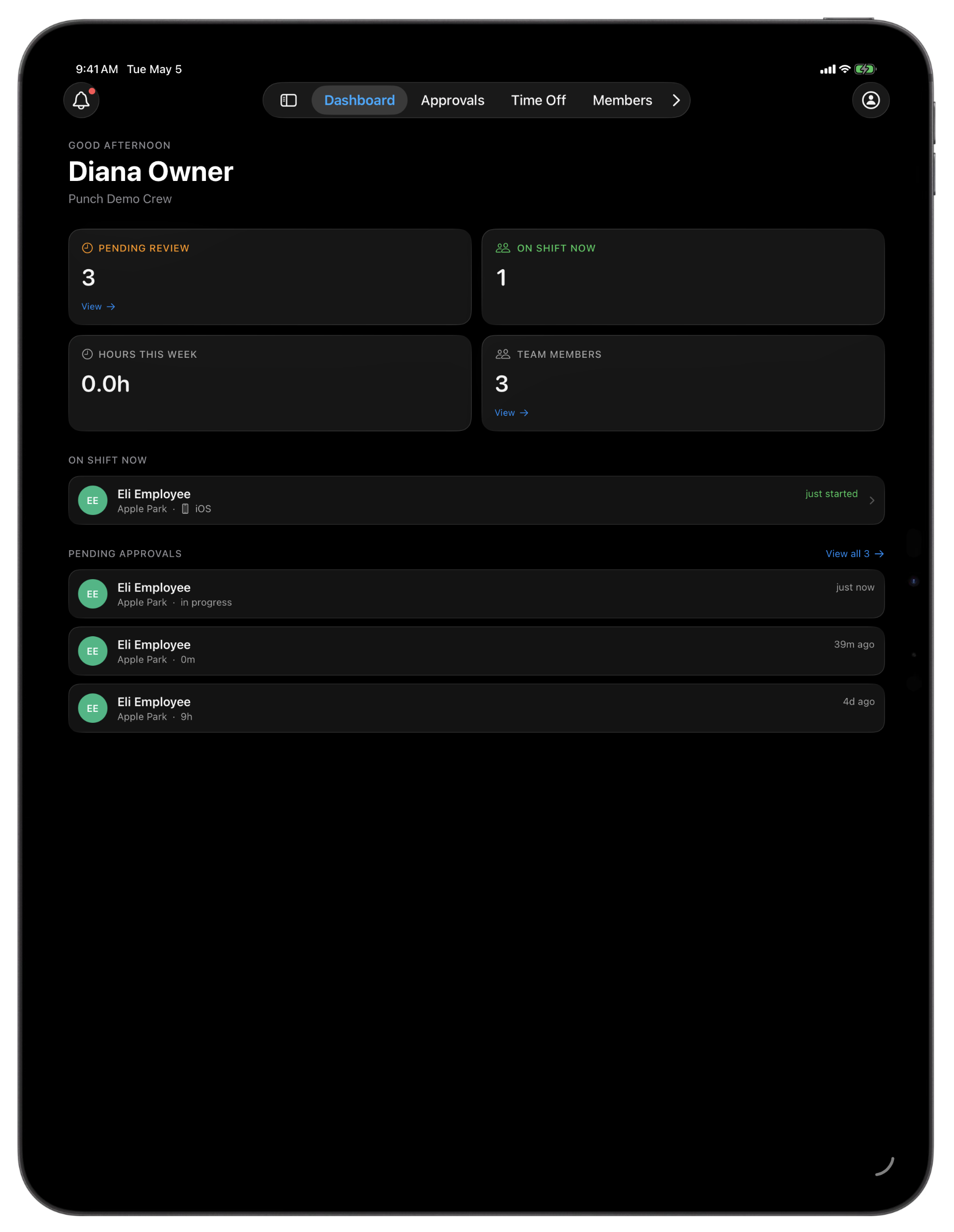
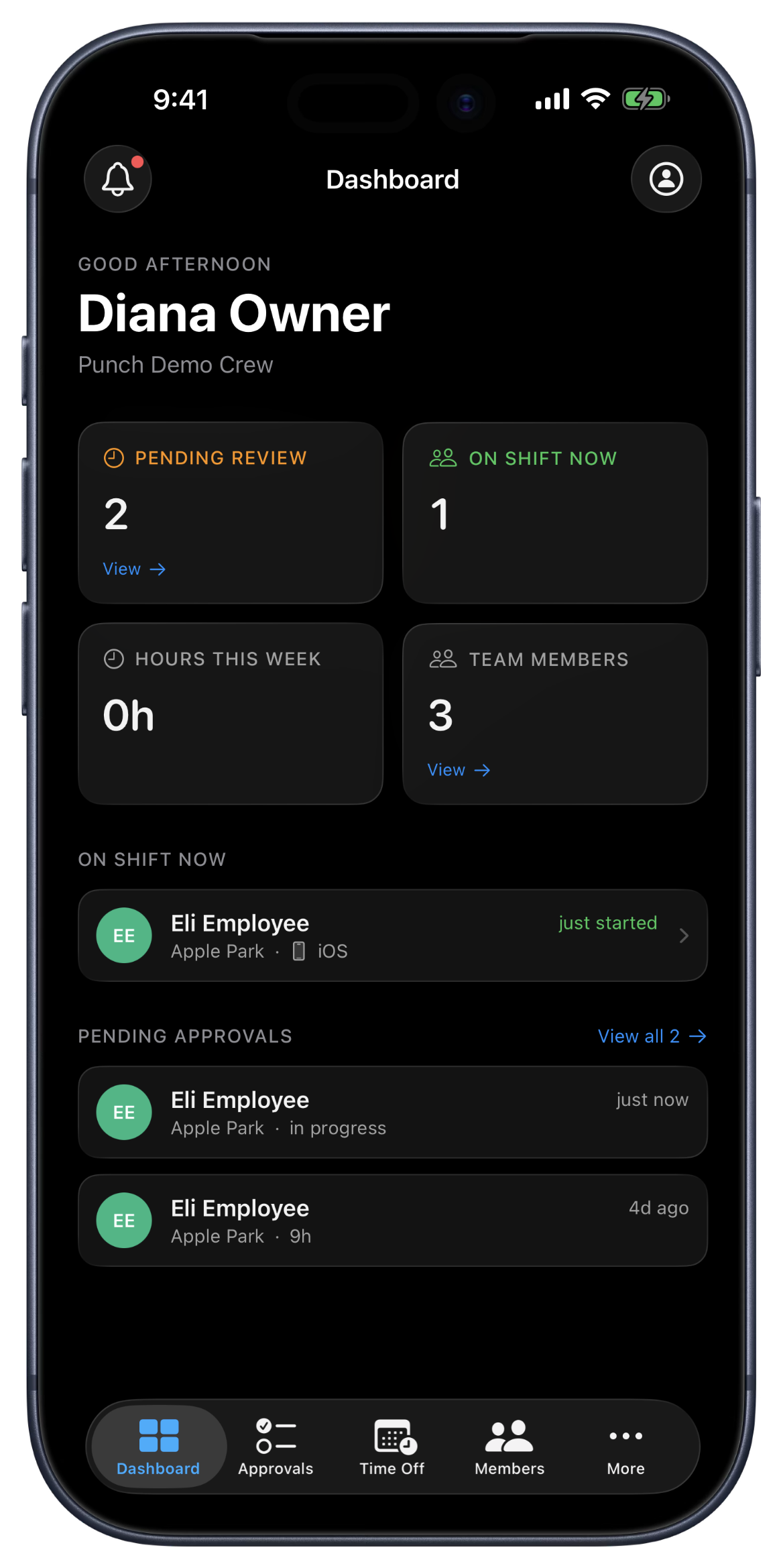
Your team, at a glance.
The dashboard is the first thing you see when you sign in as an owner or manager. Four numbers, pending approvals, on-shift now, hours this week, team size, tell you the state of the team without drilling in - on either web or iOS. Two panels below them: the next few shifts waiting for review, and everyone currently on the clock with their elapsed time ticking up. Built for the owner who's checking on the team between job sites, not running a corporate ops center.
Employees see the Now view to punch, Shifts for shift history, and Time Off to request time off and review approvals/rejections. One screen for the people running the team. Another for the people on it. No confusion.
What's on the dashboard.
Four numbers that matter most
Pending approvals, on-shift now, hours this week (net of breaks), and active team size. Tap any tile to jump straight there.
Who's on shift now
Live list of everyone currently punched in and for how long. A runaway timer is the easiest way to spot someone who forgot to punch out.
Top pending preview
The next few shifts waiting on approval, with employee name, duration, and payout estimate. One tap jumps to the full queue.
Multi-org switcher
If you run more than one org, a switcher in the nav re-scopes every tile and panel when you change which one you're viewing.
Role-aware
Owners and managers see the dashboard. Employees see their focused Now view, punch-in card, active shift, and recent week.
Numbers that line up
Hours-this-week uses the same week-start boundary your timesheets and pay periods do, weekly or bi-weekly, so the math agrees across screens.
When it earns its keep.
Owner running a 12-person painting crew
Two job sites going at once. A glance at the dashboard from the truck tells you which crew is on site, who hasn't punched in yet, and which shifts need review tonight.
Manager covering three locations
Each location's punch-ins land in the same queue. The hours-this-week tile rolls up across all three so you don't have to add them in your head.
Field-services owner with remote crews
When you can't see the truck pull up, the on-shift-now panel is your proxy. Combined with iOS geofence verification, you trust the times because the device was at the site.
FAQ
Questions, answered.
- How fresh are the numbers?
- Tiles refresh on page load and after every action (approve, reject, mark paid, edit shift), and the on-shift-now timer ticks live on screen. For most owners running 5–25 employees, that's the right cadence.
- Does the dashboard scale to multi-org users?
- Yes. If you're an owner or manager in more than one organization, we have an org switcher. Every dashboard surface, KPIs, on-shift list, pending preview, scopes to whichever org you've selected.
- Can employees see the dashboard?
- No. Employees see the Now view, that's their punch-in screen with the live shift card and recent shifts. Your org is role-aware, so only the owner and manager roles see sensitive KPIs and queues.
- What does the 'on shift now' list show?
- Punched in employees and how long they've been on the clock. If someone forgot to punch out, you'll see them stuck there with a runaway counter, that's a useful signal for managers.
Keep going.
Shift Approval Software for Small Businesses
Review punch times, lunch, and payout in one queue. Approve in one tap or reject with a reason that lands in the employee's inbox.
Learn moreEmployee Timesheet Software for Small Teams
Track weekly or bi-weekly timesheets by employee, mark pay periods paid by payment method, apply overtime presets, and export every visible pay period to Excel.
Learn moreCRMb — Clients, Scheduling & Invoicing for Punch Teams
CRMb is the office side of Punch: clients, crew scheduling, inventory, and invoicing built on the same workspace and the same punched hours. iPad, Mac, and web.
Learn more
Set up in a minute.
Create an org. Share the join code. Your team punches in today.