 Punch
PunchGeofenced punch-in
Verified at the job site.
iOS confirms the punch happens inside the radius you set for each site. Per-site, owner-toggled, verified by us, not the phone. No more punching from the parking lot.
Trust the punch.
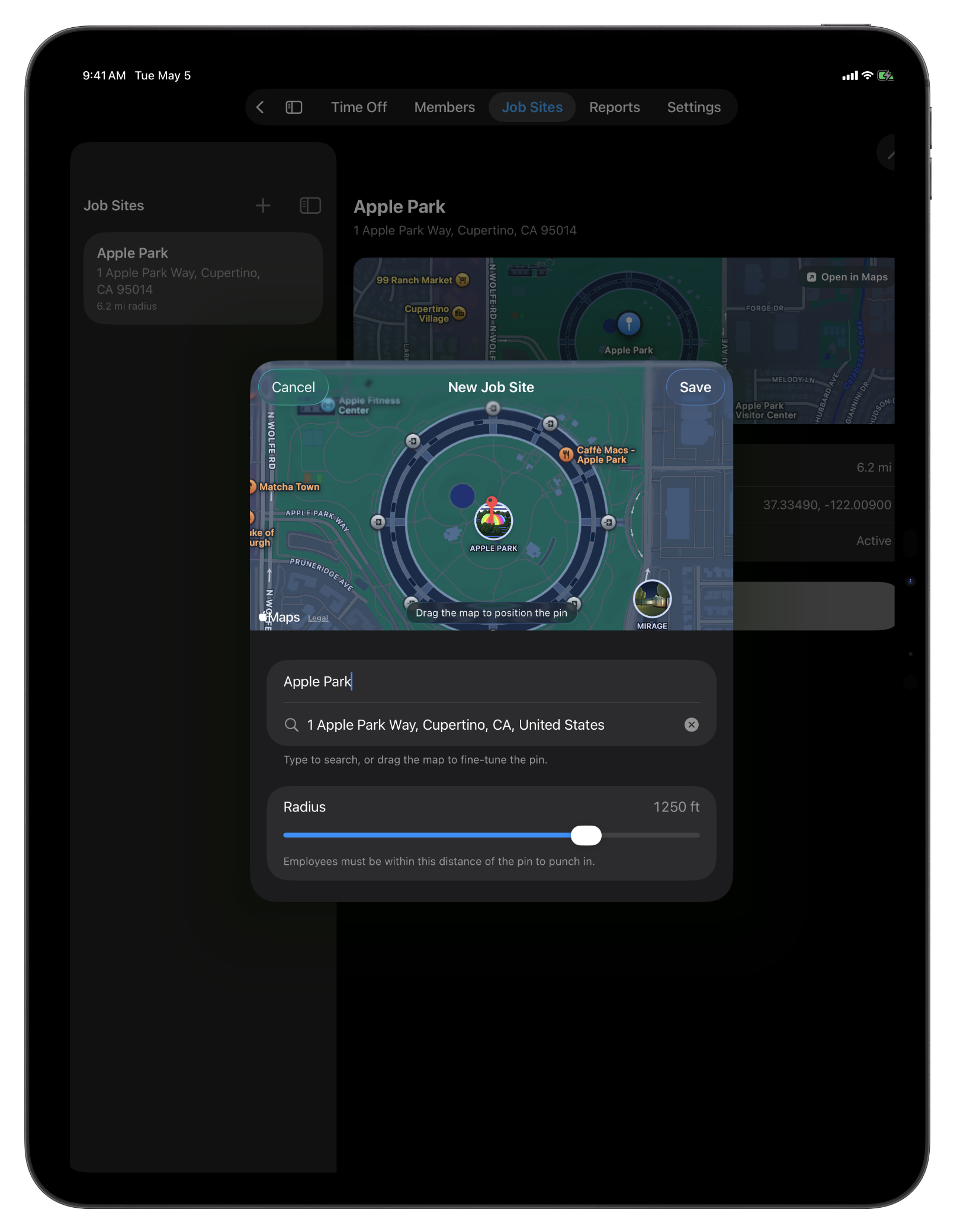
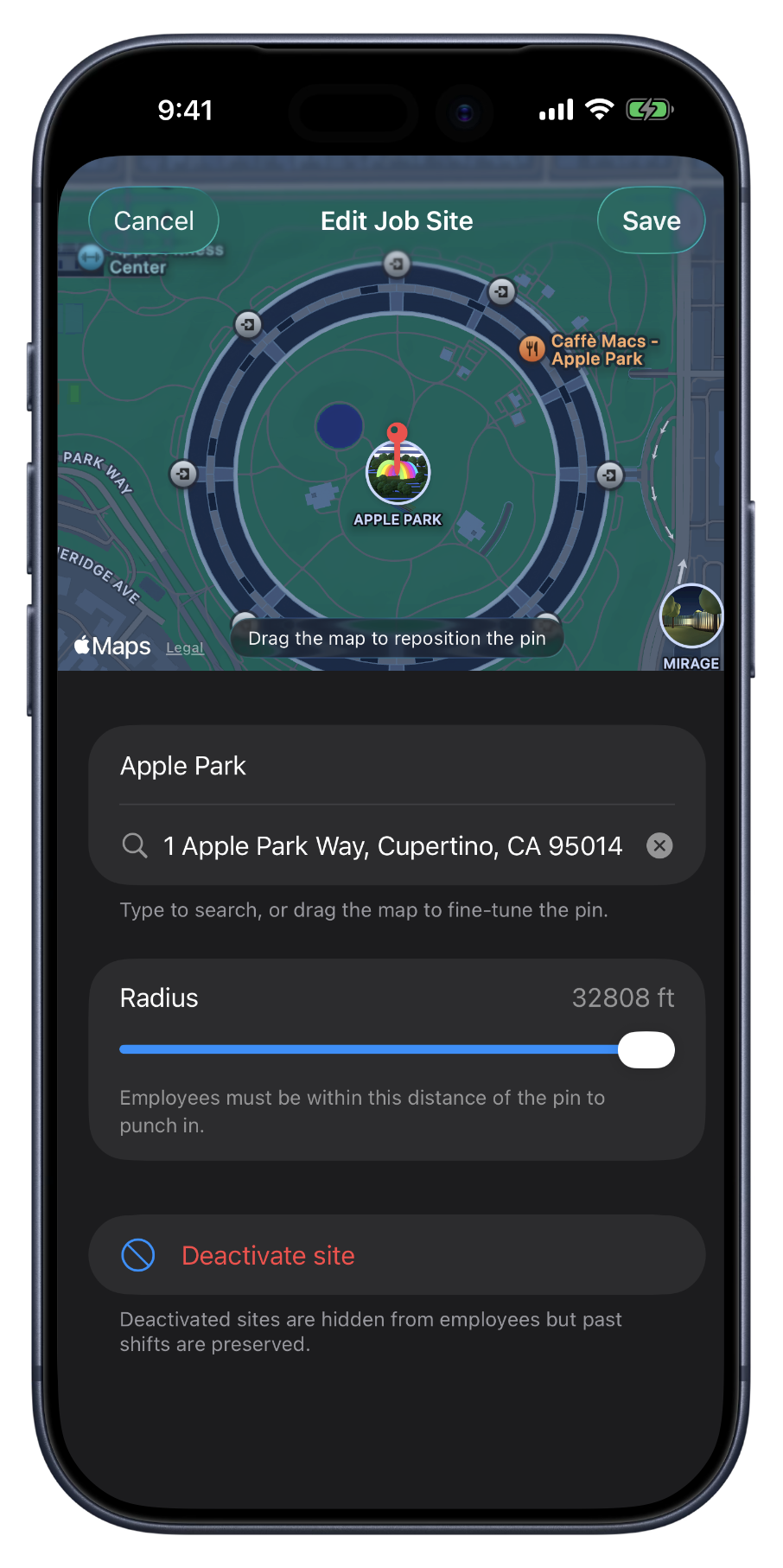
Punch answers the question every owner asks: were they actually there? You set a radius around each job site, tight for an office, wide for a construction zone, and iOS confirms the punch is inside it. Inside the radius, the punch counts. Outside, it doesn't, and the employee sees exactly why.
Verification happens on our side, not on the phone. The location of every punch-in is saved next to the timestamp, so months from now you can review a shift that doesn't quite add up. Owners and managers see the data; nobody else does. The location is captured at the moment of punch-in and only then, never in the background, never while employees are off the clock.
Geofencing is your call. Toggle it on or off any time from Account → Organization. Pair it with the Allow web punch-in switch to gate web punches separately, leave both on if your office staff need to punch from a desk, or turn web off entirely for teams that should always be on-site. Both controls are owner-set and surfaced in plain view, not buried. And with punch reminders on, your iPhone offers the punch-in when you arrive and a punch-out nudge when you leave, created entirely on your device, never sent to anyone, off by default.
What geofencing does.
Per-site radius
Configure the radius for each job site. Tight for office buildings, loose for construction zones. Whichever works best for the job.
Verified on our side
We confirm the location ourselves, not on the phone, so the punch can't claim it's at the site when it isn't.
GPS enforcement
GPS comes from the device's hardware, gated by iOS permissions. Mobile web can do the same, but browser location tracking can be tricky.
Owner toggle
On or off per-org. Off = punches accepted without a location check, perfect for standard office teams, restaurants, or any org that won't be on the move. The setting lives in Account → Organization, easy to access and modify at any time.
Audit on every punch
Each punch-in saves its location next to the timestamp. Visible to owners and managers, never to other employees. Only captured at the moment of punch-in, never in the background.
Pairs with web-punch toggle
A separate Allow web punch-in switch lets owners disable web entirely, the strictest setting for teams who only ever punch from the field.
Where geofencing pays off.
Multi-site contractors
Three job sites, three radii. An employee at site A can't punch into site B by accident, the assigned site's radius keeps it honest.
Cleaning crews
When the work is at a customer's home, the radius confirms the punch-in happened on the doorstep, not in the truck a block away.
Restaurant / retail
Tight radius around the storefront, or toggled completely off if it's not needed.
FAQ
Questions, answered.
- How does the geofence check work?
- When an iOS employee taps Punch in, the device sends its location with the request. We confirm the location is inside the configured radius of the assigned job site. If it is, the punch is accepted. If it isn't, the punch is rejected and the employee sees a clear explanation.
- What's the radius?
- Set per-job-site, defaulted at the org level. Typical values are 165–650 feet for office buildings, 650–1,650 feet for construction zones, and bigger for sprawling sites. There's no minimum or maximum, pick whatever matches the site's footprint and how forgiving you want to be on GPS jitter.
- What about web punches?
- Web punches don't get distance-checked. Browser geolocation is unreliable on desktop, easy to spoof through developer tools, and confusing to enable for a one-off office user. We don't pretend to enforce geofencing where we can't enforce it. Owners who want strict rules can disable web punching entirely with a toggle in the org settings.
- Is the location stored anywhere?
- The lat/lng of the punch-in event is recorded on the time-entry row alongside the timestamp. It's only visible to owners and managers of that org, and only to verify the geofence at audit time. We don't track location continuously or in the background, only the moment of punch-in.
- Can I turn geofencing off entirely?
- Yes. Owners toggle it on or off from Account → Organization. When off, employees can punch in without a location check (still on iOS or web). The web-punch-in toggle is a separate switch, you can enforce iOS while disabling web, or allow both, or require iOS-only with geofencing on.
Keep going.
Shift Approval Software for Small Businesses
Review punch times, lunch, and payout in one queue. Approve in one tap or reject with a reason that lands in the employee's inbox.
Learn moreEmployee Time Tracking Dashboard for Owners
See pending approvals, who's on shift, hours this week, and team size, all in one view. The owner dashboard built for small field teams.
Learn moreCRMb — Clients, Scheduling & Invoicing for Punch Teams
CRMb is the office side of Punch: clients, crew scheduling, inventory, and invoicing built on the same workspace and the same punched hours. iPad, Mac, and web.
Learn more
Set up in a minute.
Create an org. Share the join code. Your team punches in today.