 Punch
PunchKiosk mode
One iPad. The whole crew punches in.
Pair a shared iPad once. Everyone punches in with their name and a PIN, no work phone required. Behind the picker is the real Punch app, signed in just for them. Run one, or one at every entrance — there's no limit on the kiosks in your org.
A punch station for the whole team.
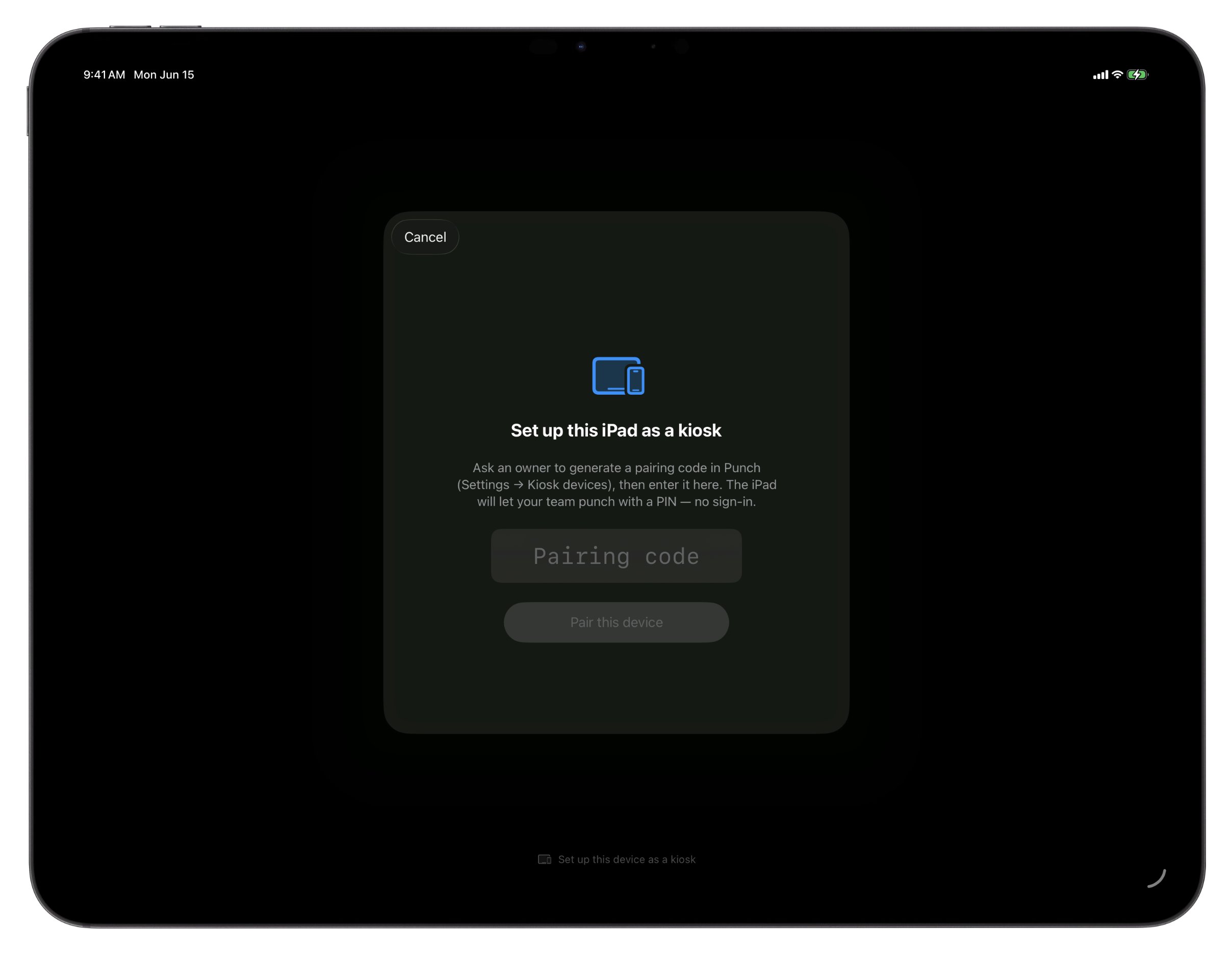
Not everyone carries a work phone, so kiosk mode turns a single shared iPad into a punch-in station the whole team uses. Pair the iPad once, and from then on the screen shows your roster. Search a name, tap it, enter a PIN, and you're punched in.
And you're not limited to one iPad. Every kiosk pairs at the organization level and is told apart by its own code, so Punch keeps them straight with no work from you. Run as many as you need — one at the front counter, one in the back, one in every truck — all from a single setup, with no limit on how many you add.
Behind that picker is the real Punch app. A PIN doesn't open a stripped-down kiosk, it signs that employee into their actual account, with the same punch-in screen, the same shift history, the same time-off requests, for as long as they're using it. When they walk away, they're signed back out, and the next person taps their own name.
It's built for a counter or a job trailer. The iPad doesn't move, so a kiosk punch-in skips the geofence check, your pairing is the proof of place. After a punch, a short walk-away timer signs the employee out automatically, and an idle iPad returns to the roster on its own, so no one's session is left open.
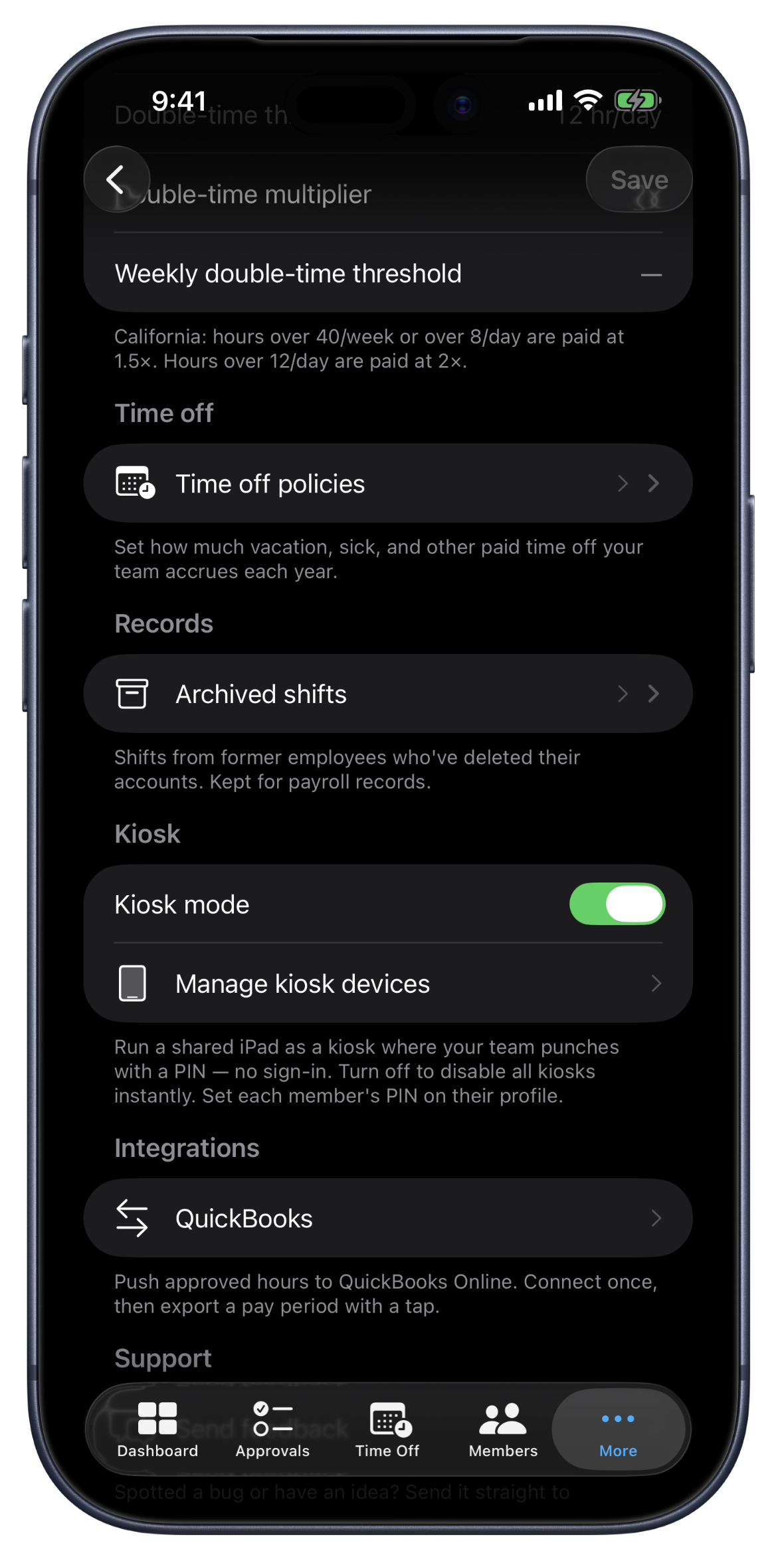
Owners stay in control from Settings. Turn kiosk mode on or off for the whole org with one switch, flip it off and every paired iPad returns to normal sign-in. Each device gets a name, a pairing code you can view or regenerate any time, and a one-tap revoke. Set a PIN for each person from their profile, and five wrong tries locks that PIN for fifteen minutes. Leaving kiosk mode on a device takes Face ID or the owner's password, so a customer can't tap their way out.
What kiosk mode does.
Pair once
Set up the iPad a single time. After that it shows your roster and stays ready, a fixed punch-in station for the whole crew.
Name plus PIN
Search a name, tap it, and enter a PIN to punch in. Tapping the wrong name fails on the PIN instead of punching the wrong person in.
The real app, not a stripped kiosk
A PIN signs the employee into their actual account, with the real punch screen, shift history, and time-off requests, then signs them out when they walk away.
Built for a fixed station
A kiosk punch-in skips the geofence, your pairing is the proof of place. A walk-away timer and idle auto-logout keep sessions from being left open.
Owners stay in control
One org-wide on/off switch, plus per-device name, pairing code, and revoke. Set PINs per person, and exiting kiosk mode takes Face ID or the owner's password.
Private by design
Punch verifies a shift with a PIN and your pairing, never a camera in your crew's face. No photo-on-punch, no facial recognition. Trust beats surveillance.
As many iPads as you need
There's no limit on kiosks in an org. Each iPad pairs at the org level with its own code, so run one or put a station at every entrance, register, and job trailer — all from one setup.
Where kiosk mode earns its place.
Restaurant counter
An iPad by the kitchen door. Line cooks and servers tap their name and PIN on the way in, no personal phones out during service.
Construction trailer
A shared iPad in the job trailer. The crew punches in on arrival, and the kiosk punch-in doesn't fight the geofence on a tablet that never moves.
Shop floor or storefront
One device at the entrance for a whole shift's worth of punches. Idle auto-logout means it's always ready for the next person.
FAQ
Questions, answered.
- Do my employees need their own phones?
- No. Kiosk mode is built for teams that share one device. Pair a single iPad and the whole crew punches in on it, with their name and a PIN, so no one needs a work phone or their own login on the device.
- How does someone punch in on the kiosk?
- They search their name on the roster, tap it, and enter their PIN. That signs them into their real account for the session, the actual punch screen, shift history, and time-off, then signs them out when they walk away.
- Does the geofence still apply on a kiosk?
- A kiosk punch-in skips the geofence, because a shared iPad sits in one place and your pairing of the device is the proof of location. Punch-out and lunch are never geofenced on any device.
- What if someone forgets to log out?
- After a punch, a short walk-away timer signs the employee out automatically, and an idle iPad returns to the roster on its own. Sessions don't sit open waiting for the next person.
- Can a customer tamper with the iPad or take photos?
- Leaving kiosk mode takes Face ID or the owner's password, so a customer can't tap their way out. And Punch never uses photo-on-punch or facial recognition, a shift is verified with a PIN and your pairing, never a camera on your crew.
- How many iPads can I set up as kiosks?
- As many as you need. Punch doesn't cap kiosk devices. Every iPad pairs at the organization level and is told apart by its own code, so you can run one shared iPad or a station at every entrance, register, and job site, all from a single setup.
Keep going.
Geofencing Time Clock for Job Sites
Verify punches at the job site. iOS confirms the device is inside the radius you set, server-validated. Geofence time tracking for field teams that need trustworthy hours.
Learn moreTeam Management for Small Field Teams
Invite by code, set pay rates, change roles, and deactivate with a reason. Punch keeps team management simple and keeps every change on the record.
Learn more
Set up in a minute.
Create an org. Share the join code. Your team punches in today.