 Punch
PunchTeam management
Manage your team with ease.
Invite by code. Set pay rates. Change roles. Deactivate with a reason. Every change kept on the record.
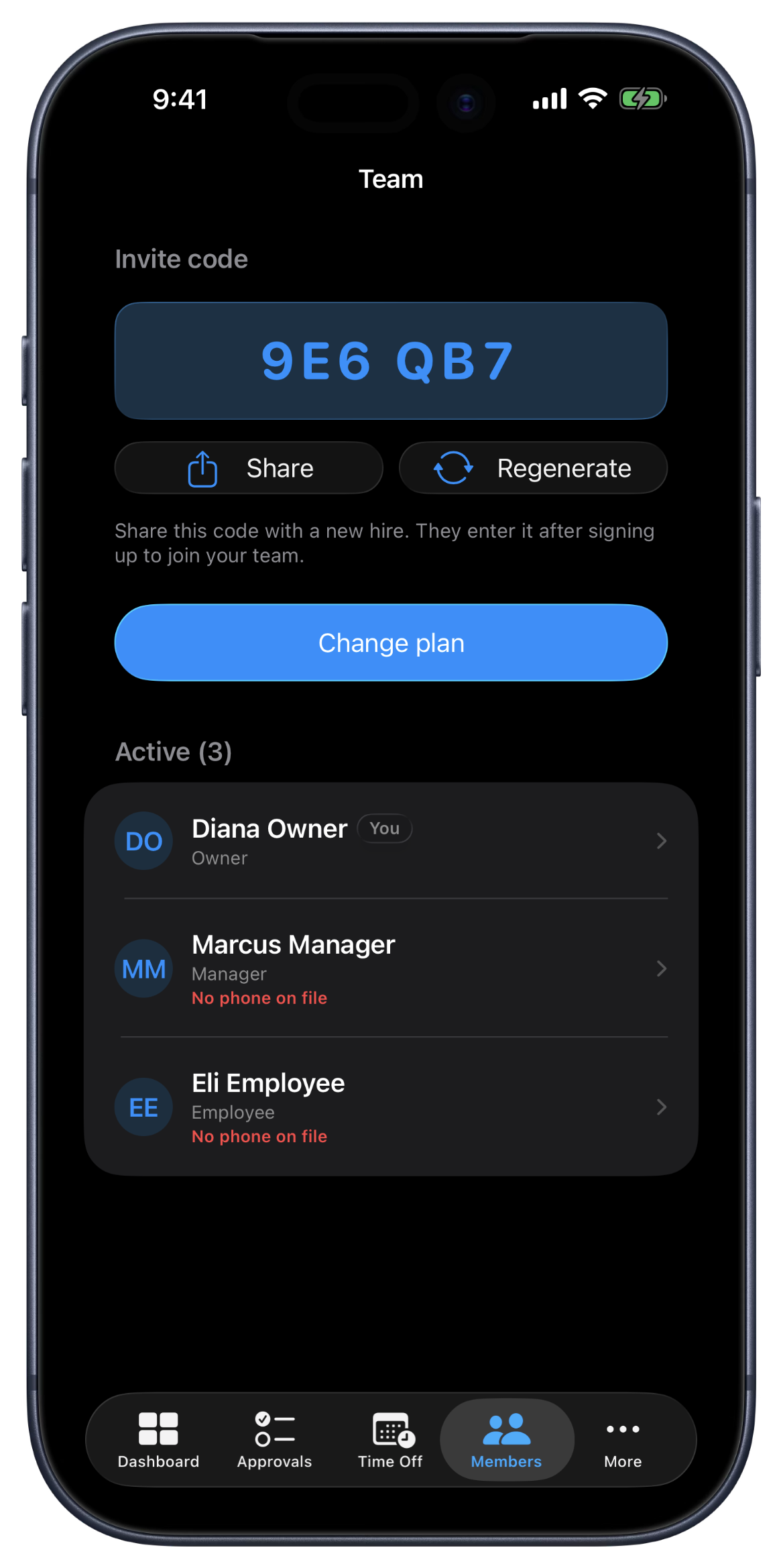
Roles, rates, and a record of every change.
Team management lives where you'd expect: the Members page on iPhone, iPad, or web, gated to owners and managers. Every active and deactivated employee shows up with their role, pay rate, contact info, and join date. Your org runs in its country's currency and overtime rules, and the app is available in English, Spanish, or Canadian French. No separate HR module, no admin panel hidden in another corner of the app.
Three roles, with permissions that match what each one actually needs. Owners do every team-side action: change roles, edit pay rates, deactivate members, regenerate the join code. Managers run the day-to-day, approve shifts, edit shifts in the current week, see the dashboard, but role changes, pay rates, and deactivations stay in the owner's hands. Employees see their own profile and their own shifts. The rules apply on our side, not just in the app, so the hierarchy holds even if someone tries to go around it.
New employees join with a 6-character code the owner can regenerate any time. Text it, paste it in Slack, write it on a sticky, the employee enters it on sign-up and they're in. When the relationship ends, the owner deactivates the membership with a required reason. The member loses access right away, but their past shifts stay on the books for your records.
What team management does.
Invite by code
A 6-character join code per org. Regenerate any time; the old code stops working. No invite emails to manage, no approval queue.
Three roles
Owners do every team-side action. Managers run day-to-day approvals and edits. Employees can punch and view their shifts. The right amount of access for each role.
Per-employee pay rates
Hourly rate, annual salary, and pay type are set per employee, in your org's local currency. Edits apply forward; past shifts keep the rate they were punched at.
Deactivate with a reason
A required reason is recorded with the deactivation. Past shifts and pay periods are preserved. Reactivation is one click if you change your mind.
Multi-org membership
Same person, different orgs, different roles in each. The switcher in the nav re-scopes every page when you flip context.
A record of every change
Role changes, pay rate edits, deactivations, and reactivations are all recorded with the actor and timestamp.
Team-based management
Assign a manager to one or more teams and they see and approve only their own crew, plus anyone unassigned. Owners still see everyone. A manager on no team stays org-wide. Enforced on our side, not just hidden in the app.
Managers can punch too
Give a manager a pay rate and they can track their own hours, hourly, salary, or by location, with the same punch screen and shift history employees use. Their shifts go to the owner for approval; they can't approve their own.
A dedicated payroll role
Give one person the Payroll role and they see the pay periods that are ready to pay and mark them paid, right alongside you. No access to approvals, settings, or pay rates, just the part of the job that's theirs.
Managers who oversee managers
Turn on a reporting structure and a senior manager oversees other managers and their teams. Each manager still sees only their own people; the senior manager sees their whole branch. Off by default, so nothing changes until you build the tree.
When the team page earns its place.
First hire
Owner creates the org. Sets the join code. Texts it to the new hire. They sign up, enter the code, punch in within 5 minutes.
Role transition
Senior employee gets promoted to manager. Owner taps Change role on their member card, picks Manager, done. The new manager sees the approvals queue on their next sign-in.
Letting someone go
End the relationship cleanly. Deactivate with a reason. They lose access immediately. Their past shifts stay on the books, when payroll asks for last quarter's hours, the data is still there.
FAQ
Questions, answered.
- How do new employees join?
- Owners and managers regenerate a join code from the Members page. Share it (text, Slack, scrap of paper), the new employee creates their account, enters the code on sign-up, and they're in. No manual invite emails, no admin approval queue.
- Can a single user be in multiple orgs?
- Yes. Multi-org users get an org switcher in the top nav. Every surface, dashboard, approvals, timesheets, reports, re-scopes when you switch the active org. Useful for managers who run two crews or owners who hold multiple LLCs.
- What happens when I deactivate a member?
- Their status flips to disabled. They lose access immediately, but their past shifts and pay periods stay on the books for your records. The deactivation reason is required, kept on file, and visible to other owners. Reactivation is one click if you change your mind.
- Can a manager change roles?
- No, role changes, pay-rate edits, and member deactivation are owner-only actions. Managers run the day-to-day (approvals, shift edits, dashboard) but the team's structure stays in the owner's hands. Self-state-change is blocked for everyone, including owners, you can't promote or demote yourself. Account deletion is the only role-self-action allowed.
- How do I set per-employee pay rates?
- Hourly rate, annual salary, and pay type live on the membership row, set by the owner from the Members page. Edits take effect immediately for new shifts; existing shifts use the rate that was set when they were punched in (no retroactive math).
- Can I limit a manager to just their team?
- Yes. Assign a manager to one or more teams and they see and approve only their team's members, plus anyone not yet on a team. Owners always see everyone. A manager left on no team keeps org-wide visibility, so nothing changes for smaller crews. The boundary is enforced on our side and applies everywhere it matters: approvals, time off, the roster, reports, and the dashboard.
- Can managers track their own hours?
- Yes. Give a manager a pay rate (hourly, salary, or per location) and they get the same punch screen and shift history your employees use, to record their own time. Their shifts flow to the owner for approval, and a manager can never approve their own shift. Managers without a pay rate stay approvers only.
- Can someone handle payroll without running the team?
- Yes. Assign a member the Payroll role and they get a single job: see the pay periods that are ready to pay and mark them paid, alongside the owner. They can't approve shifts, change settings, edit pay rates, or touch the roster, payroll is the only thing they can do. The boundary is enforced on our side, not just hidden in the app.
- Can a senior manager oversee other managers?
- Yes, once you turn on the reporting structure. An owner flips it on, then points each manager at the senior manager they report to. The senior manager sees and approves their whole branch, every manager under them plus those managers' teams; each manager still sees only their own crew. It's off by default, so existing orgs keep today's flat setup until you decide to build the tree.
Keep going.
Employee Time Tracking Dashboard for Owners
See pending approvals, who's on shift, hours this week, and team size, all in one view. The owner dashboard built for small field teams.
Learn moreShift Approval Software for Small Businesses
Review punch times, lunch, and payout in one queue. Approve in one tap or reject with a reason that lands in the employee's inbox.
Learn moreCRMb — Clients, Scheduling & Invoicing for Punch Teams
CRMb is the office side of Punch: clients, crew scheduling, inventory, and invoicing built on the same workspace and the same punched hours. iPad, Mac, and web.
Learn more
Set up in a minute.
Create an org. Share the join code. Your team punches in today.